@mattcooper Some clarifications on how to setup and use AWS in SNAP Product Library:
1/ the only AWS credentials needed in SNAP Product Library are the accessKeyId and secretAccessKey; their values should be set in Tools -> Options -> General -> Product Library as values for username and password:
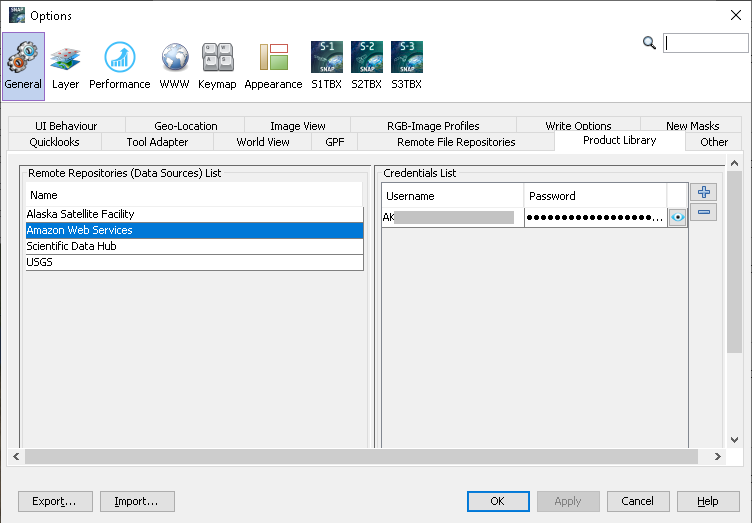
No need for region or bucket, the only S2 bucket used in Product Library is sentinel-s2-l1c. (in the post I previously mentioned the configuration was for AWS Virtual File System, which also needs the credentials, but it’s more complex)
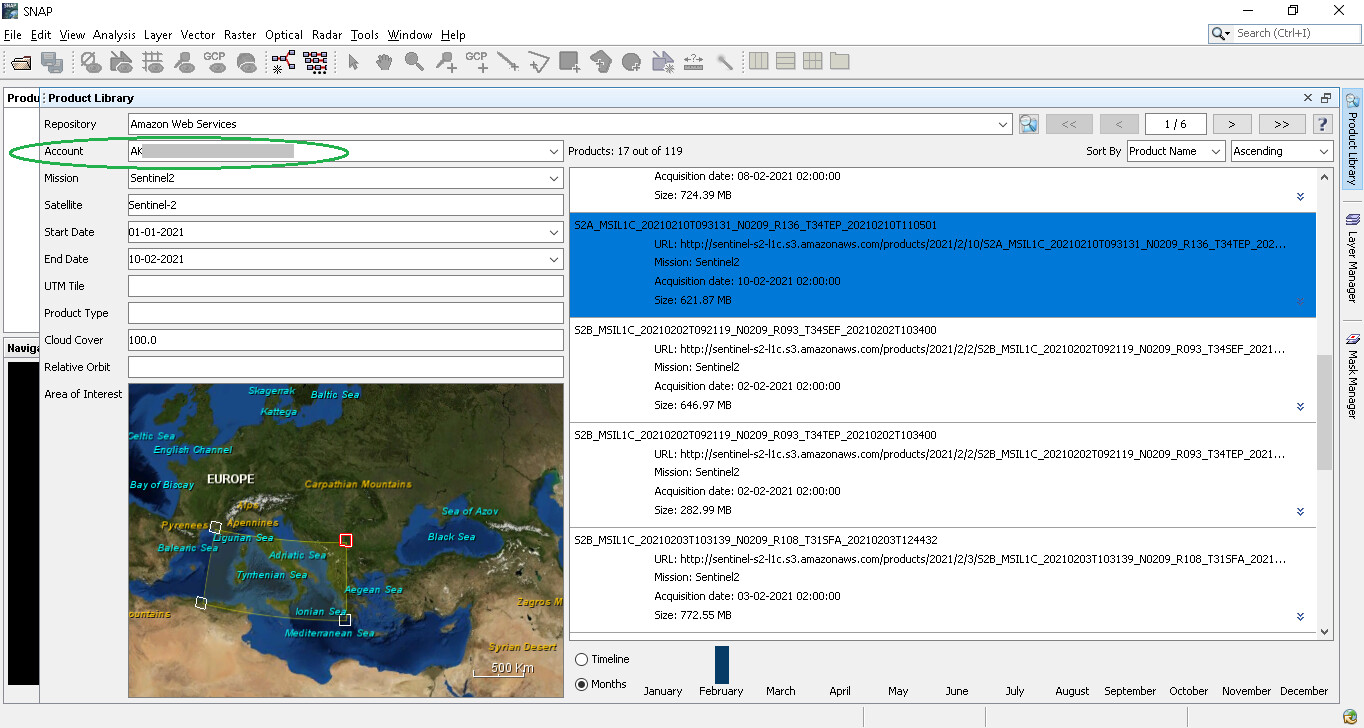
2/ Once these credentials are saved (make sure to click on Apply button), when you open Product Library and select the AWS repository, the Account should be automatically detected and displayed. Then insert the other criteria and perform the search:
You mentioned:
“I opened the product library, added my user credentials for AWS as instructed (after creating an AWS user account), selected the satellite, start and end date, and area of interest. When i press the search button, nothing happens”
Please provide some screenshots.